A few months ago, I just wanted to watch a movie on my TV. That’s it. A simple goal. But my only pendrive was occupied with a Linux live boot image. Instead…
A few months ago, I just wanted to watch a movie on my TV. That’s it. A simple goal. But my only pendrive was occupied with a Linux live boot image. Instead of formatting it like a responsible adult, I looked at my broken Android phone and thought: "Yes. This will become a server."
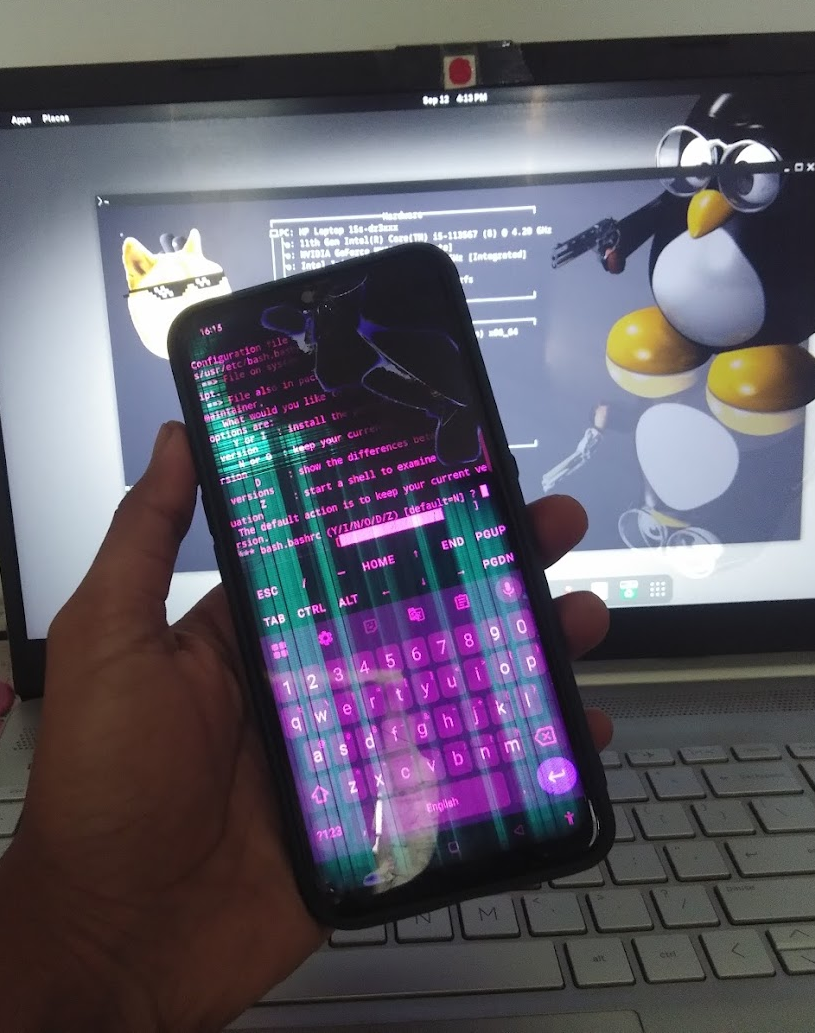
The phone had a LGBTQ display, a decent battery, and 128GB internal storage (108GB usable). In other words — perfect enterprise-grade infrastructure.
Phase 1: Installing Termux
First step: factory reset the phone, enable Developer Options, turn on USB debugging, and install Termux from F-Droid, not Play Store.
pkg update && pkg upgrade -y
pkg install git curl wget nano htop openssh -y
Enable storage access:
termux-setup-storageAt this point, my phone was officially more Linux than Android.
Phase 2: Installing Debian Using proot-distro
Android is Linux, but not the kind we want. So I installed Debian inside Termux using proot-distro.
pkg install proot-distro -y
proot-distro install debian
proot-distro login debian
Now I had a full Debian userspace running on a broken phone. Peak engineering.
apt update && apt upgrade -y
apt install sudo net-tools iproute2 -y
I even created a non-root user because we believe in best practices.
adduser homeserver
usermod -aG sudo homeserver
Phase 3: Turning It into a Real Multi-User Samba NAS
I decided to create three logical users: me, my sister, and a shared parents account. Plus — a common family directory where everyone can drop files without starting World War III over permissions.
First, install Samba and prepare the base directories:
apt install samba -y
mkdir -p /opt/smb/private/{parents,sister}
mkdir -p /opt/smb/common
Create Linux users (because Samba users must exist on the system first):
adduser parents
adduser sister
Assign ownership so nobody spies on anyone else’s files:
chown parents:parents /opt/smb/private/parents
chown sister:sister /opt/smb/private/sister
chmod 700 /opt/smb/private/*
Private means private. chmod 700 ensures even the FBI (or siblings) can’t peek.
Now create a family group for the shared directory:
groupadd family
usermod -aG family parents
usermod -aG family sister
id sister
Configure the common directory with sticky group permissions:
chown -R root:family /opt/smb/common
chmod -R 2775 /opt/smb/common
The 2 in 2775 sets the SGID bit — meaning new files inherit the family group automatically. Clean. Organized. Professional. Slightly overkill for movie storage.
Add Samba passwords for each user:
smbpasswd -a sister
smbpasswd -a parents
Now the fun part — editing /etc/samba/smb.conf:
[Private]
   path = /opt/smb/private/%U
   browseable = no
   writable = yes
   valid users = %U
   create mask = 0700
   directory mask = 0700

[Common]
   path = /opt/smb/common
   browseable = yes
   writable = yes
   valid users = @family
   create mask = 0660
   directory mask = 2770
Restart Samba to apply changes:
smbd -D
nmbd -D
# To Stop:
# pkill smbd
# pkill nmbd
Nice, My smb was done but my parents won't use that cli version for sure. So i had to make own webpage for that. I just find https://github.com/filebrowser/filebrowser using apache2 i live it.
And boom — from my TV I connected to smb://<phone-ip>/common via VLC. I officially had a 128GB(108GB usable) home NAS powered by a phone that couldn’t even show notifications anymore.
Phase 4: The Minecraft Server Dream
At this point, confidence levels were dangerously high. I thought: "If it can serve movies, it can serve Minecraft." This was the moment my phone began questioning my life choices.
apt install openjdk-17-jdk -y
java -Xms256M -Xmx512M -jar server.jar nogui
It started, technically, but performance was unusable. Thermal throttling kicked in and the experience was closer to a slideshow than a game.
Lesson learned: not every idea scales.
Phase 5: Making It Actually Useful – VPN Setup
Since the phone would be running services 24/7, I wanted remote access to my home network. A VPN gateway sounds perfect in theory—but running an OpenVPN server inside Termux/proot isn’t practical because VPN servers need low-level network control.
So I changed the plan:
- OpenVPN server runs on my home network (router)
- Phone acts as an OpenVPN client
- I can securely reach home services from anywhere
This approach is how VPNs are usually deployed and avoids the networking limitations of Android environments. OpenVPN Server (Home Network Side)
If your router or Linux server supports OpenVPN, configuration is typically handled there. A basic server configuration looks like:
port 1194
proto udp
dev tun
server 10.8.0.0 255.255.255.0
persist-key
persist-tun
keepalive 10 120
cipher AES-256-CBC
Key points:
- dev tun creates the VPN tunnel
- server defines the virtual network
- port 1194/UDP must usually be forwarded on the router
- certificates/keys are required (handled by router tools or Easy-RSA on the server)
- Most modern routers with VPN support can generate this automatically.
- OpenVPN Client (Phone Side)
On Android, use the official client (OpenVPN Connect) and import your configuration file:
Client configuration (client.ovpn):
client
dev tun
proto udp
remote your.server.address 1194
cipher AES-256-CBC
persist-key
persist-tun
Then:
- install OpenVPN Connect
- import
client.ovpn - connect
- access home network resources as if you were local
No Termux or root access is required.
Final Infrastructure Status
- 128GB Samba NAS
- SSH remote access
- Debian running via proot
- OpenVPN remote gateway
Minecraft server
All running on a phone that technically belongs in an e-waste bin. Instead, it now consumes 5W of power and serves my home network 24/7.
What started as "I just want to watch a movie" became a fully self-hosted micro data center. Would I recommend it? Absolutely. Was it necessary? Not even slightly.
Few days later i repair it's display becuase it was only phone i have T_T.